![edvisor-help1-1.png]](https://help.edvisor.io/hs-fs/hubfs/edvisor-help1-1.png?height=40&name=edvisor-help1-1.png)
User Management
School accounts on Edvisor can add an unlimited number of users. To manage users:
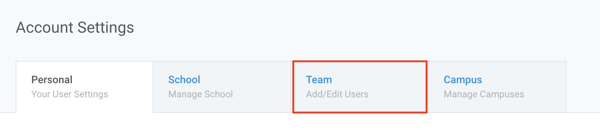
- Go to your account settings by clicking "Settings" in the dropdown menu.
- Click the "Team" tab (third tab) to open your team settings.

Add (Invite) a New Team Member as a User
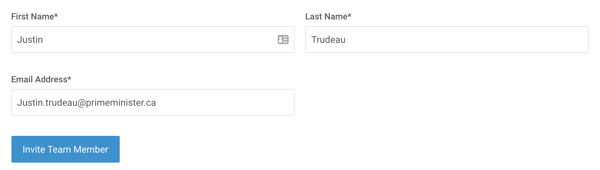
- In the team section, enter the new team member’s first name, last name, and email address.
- Click "Invite team member".
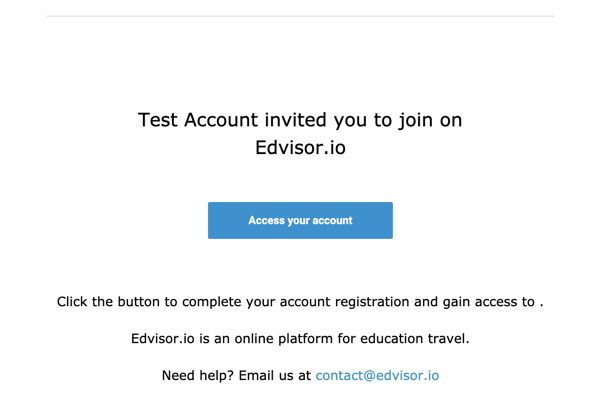
- The person will receive an email with the invitation and can follow the link to complete their account creation.
Delete (Remove) an Existing Team Member
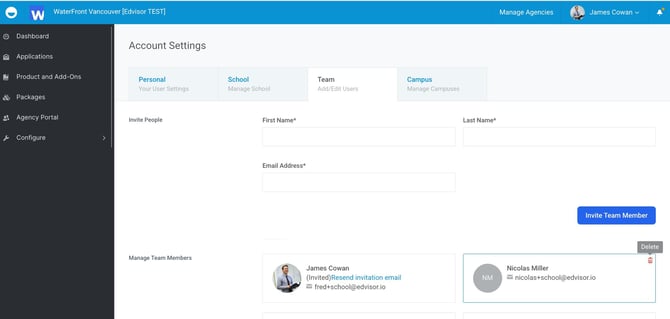
- In the same team settings page, locate the user you want to remove.
- Highlight (scroll over) their user card, and look for the delete icon to appear.
- Click on the icon to see a confirmation popup.
- Confirm the action when prompted to permanently remove that user from your team.
**This action CANNOT be reversed.**
User Permissions
At this time, all Edvisor School users have the same access ("admin") and can view all areas of Edvisor and your configure settings.