![edvisor-help1-1.png]](https://help.edvisor.io/hs-fs/hubfs/edvisor-help1-1.png?height=40&name=edvisor-help1-1.png)
Our quote editing interface is designed to save you time and make changes directly without the need to navigate through multiple screens.
Here are some key features when editing Edvisor quotes:
-
Inline Editing: Make changes directly in the quote view, similar to editing a spreadsheet or form.
-
Fewer Clicks: Add, edit, or remove products and payment plans without opening separate sections.
-
Consistent Components: The interface uses familiar selection tools for a seamless experience.
- Auto-save: No need for a 'Save' button as changes made will be saved as you make them.
Editing Edvisor Quotes
1. Adding More Products Manually
-
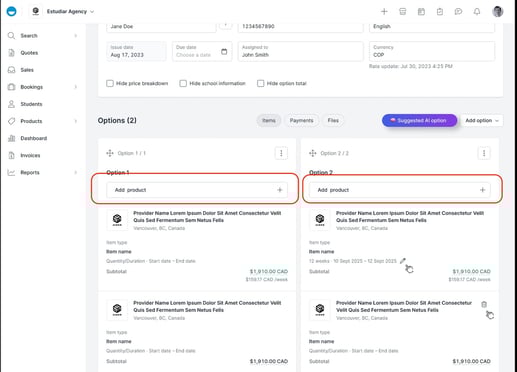
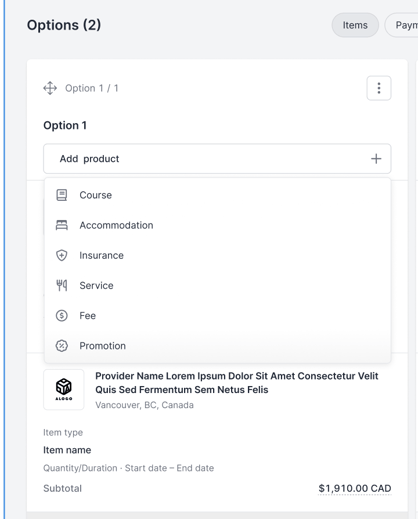
Click the “Add Product” button within your quote (option).
-
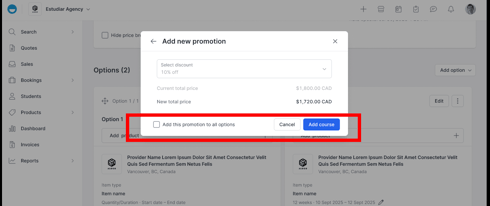
Use the selection tool to choose the product you want to add: Course, Accomodation, Insurance, Service, Fee, or Promotion.
-
The product will appear instantly in your quote.
2. Editing Product Dates
-
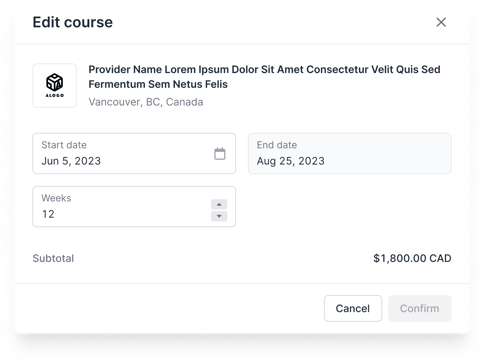
Click on the start or end date field.
-
Enter the new date directly—your changes are saved automatically (no need to hit 'Save'!).
3. Delete a Product
-
Find the product you wish to remove.
-
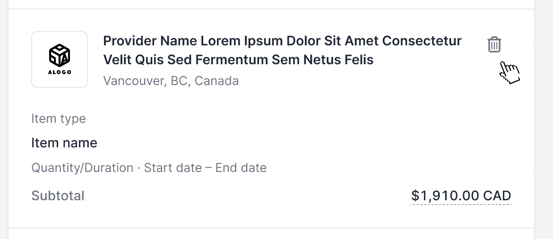
Click the delete (trash can) icon next to the product.
-
The product will be removed from your quote immediately (without needing to save the changes).
4. Add a Payment Plan
-
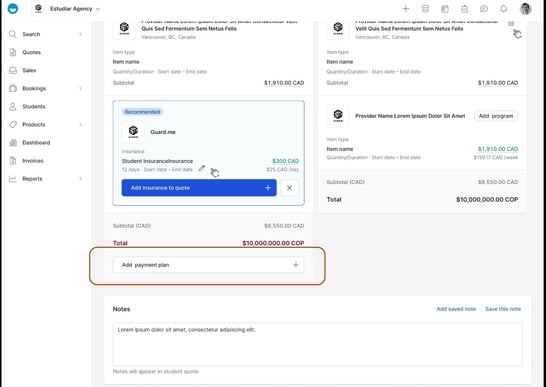
Click the “Add Payment Plan” option.
-
Select the desired payment plan from the list.
-
The plan will be added to your quote without leaving the page.
If you have further questions or need support, please contact the Edvisor Support team: support@edvisor.io